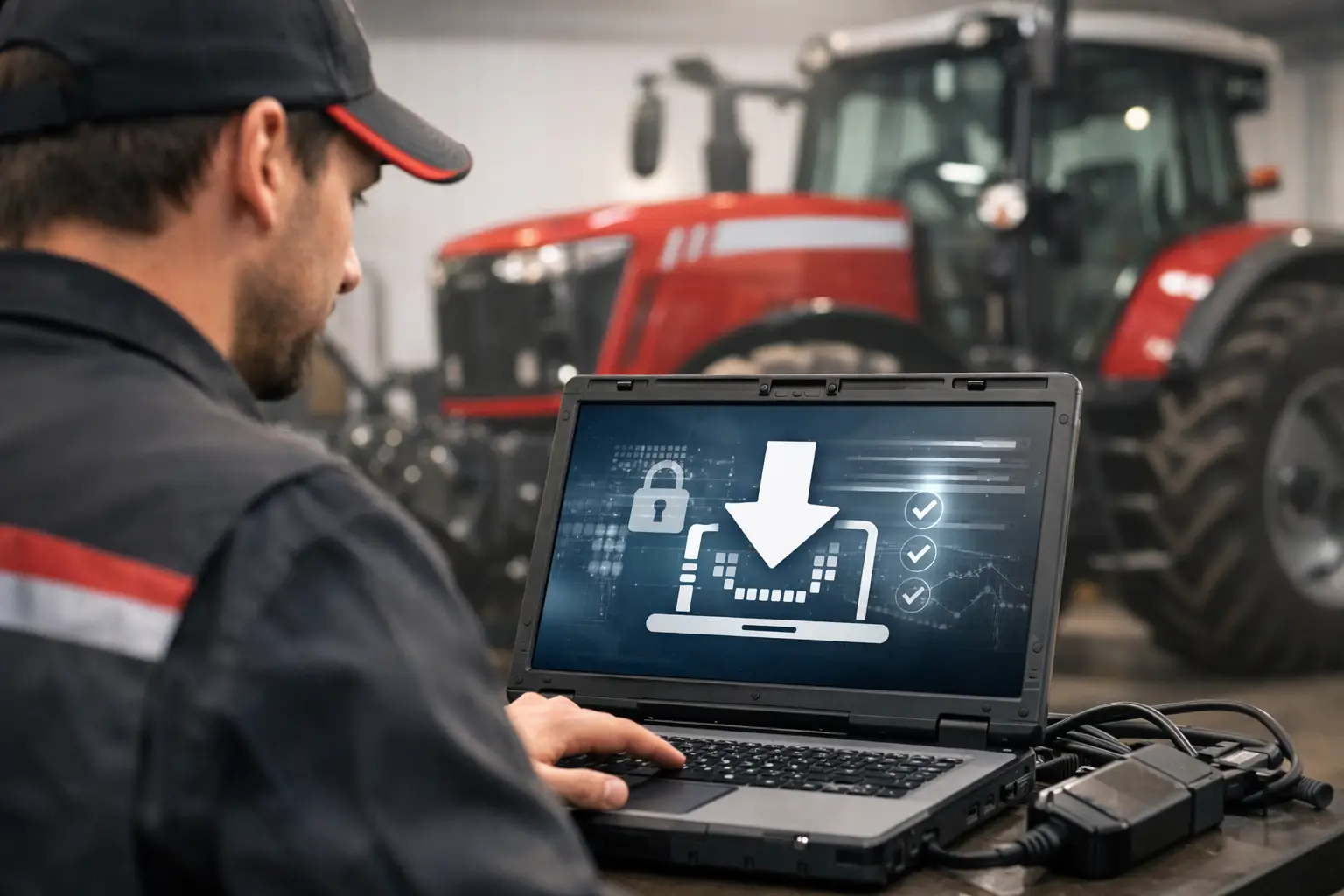
A failed AGCO technician software download is rarely just a download problem. In a working shop, the real cost shows up when the software does not recognize the machine, the communication interface is unsupported, a required entitlement is missing, or a Windows update changes a driver the night before a service call. Before installing anything, confirm the diagnostic workflow from machine serial number to interface, software version, and required service function.
For AGCO equipment, correct coverage matters more than a generic claim of compatibility. A diagnostic package that can read basic faults may not be the package required to perform calibration, guided troubleshooting, programming, controller replacement, or service reset procedures. Match the tool to the exact job before the machine is in the bay.
What an AGCO Technician Software Download Must Support
AGCO diagnostics cover multiple machine families, model generations, engine configurations, and electronic architectures. Massey Ferguson, Fendt, Valtra, and legacy Challenger equipment can have materially different diagnostic requirements even when the service task appears similar. Model year and controller generation can also determine whether a function is available.
Start with the equipment identification information: make, model, serial number, engine model, transmission type, and the controller or system being serviced. This prevents a common purchasing error: selecting software by brand only. A technician working on a newer tractor with CAN-based controllers needs a different level of coverage than a shop reading faults on earlier equipment with limited electronic systems.
The required operation should drive the software selection. Basic fault-code reading and live data may be sufficient for an initial diagnosis. A repair involving injector coding, hydraulic calibration, transmission adaptation, ECU replacement, parameter changes, or controller programming requires deeper access. These functions can be subject to machine-specific permissions, current software files, stable power requirements, and a supported communication path.
Do not assume that a package listing AGCO coverage includes every dealer-level operation. Coverage can vary by software release, regional machine specification, engine supplier, and active subscription or licensing status. Confirm the stated functions for the particular model rather than relying on a broad OEM label.
Verify the Diagnostic Interface Before Installation
The software is only one part of the diagnostic system. The PC, interface hardware, cable set, USB or network drivers, and vehicle connector must work together. If any component is mismatched, the result is often an intermittent connection, a controller identification failure, or an interrupted session during a critical procedure.
Check which diagnostic interface the software version expects. Some applications are designed around specific OEM-approved interfaces and driver versions. Others may support defined pass-through methods, but support should be verified rather than assumed. An interface that communicates with one AGCO controller does not automatically support every network, programming mode, or secure function.
Cable configuration is equally important. Agricultural equipment may use different diagnostic connectors by machine family and production year. Inspect the machine-side connector before ordering or scheduling the job. A shop can lose hours troubleshooting software when the actual issue is an incorrect adapter, damaged pins, low system voltage, or a poor ground.
For programming or configuration work, use a stable power supply appropriate to the equipment. Battery voltage that drops during a controller write can create a far more expensive problem than the original fault. The correct workflow is to verify power, connect the approved interface, confirm communication, save existing configuration data where possible, and only then begin a programming-related function.
PC Requirements Are Service Requirements
A dedicated diagnostic laptop is usually the most reliable option. It should meet the software’s stated operating system, processor, memory, storage, screen-resolution, and communication-port requirements. Workshop laptops also need enough free storage for installation files, databases, recovery media, and service records.
Windows version is a frequent compatibility point. Older diagnostic applications may require a specific Windows release, compatibility settings, or older driver framework. Newer applications may require current Windows builds, updated security components, and internet access for authentication or update delivery. Installing an incompatible version can lead to missing menus, failed drivers, activation errors, or unstable communication.
Keep the diagnostic PC controlled. Avoid using it as a general office machine loaded with untested utilities, aggressive antivirus settings, automatic driver tools, and random USB devices. Those changes can interfere with licensing services, interface drivers, or network communication. A clean, documented laptop image makes recovery faster when a software update or Windows change causes a problem.
Before deploying software on a field laptop, test it in the shop. Confirm that the application opens, the interface driver loads, the interface is detected, and a known compatible machine can be identified. This is especially important for mobile technicians who may not have reliable internet access at the jobsite.
Licensing, Access, and Update Control
Factory diagnostic ecosystems commonly use licenses, subscriptions, user accounts, certificates, or approved access methods. These controls affect what the application can do, not merely whether it launches. Diagnostic access, technical documentation, calibration data, programming files, and security-related functions can each have different requirements.
Use properly authorized software, credentials, and files for the work being performed. Attempting to defeat licensing or security controls can expose the shop to legal risk, compromise machine security, and leave critical modules without valid software support. It also makes it difficult to verify whether a failure came from the machine or an altered installation.
Updates require planning. A newer release may add model coverage, correct known issues, or include revised calibration information. It can also change interface support, operating-system requirements, activation procedures, or the availability of older functions. For a shop servicing mixed fleets, the newest version is not automatically the best version unless it supports the entire equipment range in the workload.
Record the installed software version, interface firmware version, driver version, laptop operating system, and active license status. That record turns future troubleshooting into a controlled process instead of guesswork. If one laptop connects and another does not, version data quickly narrows the cause.
Download and Installation Checklist
Before completing an AGCO technician software download, verify these four points: the exact machine and service function are covered; the required interface and cables are available; the laptop meets the documented requirements; and the required authorized licensing or online access is active. Then archive the installation package, version notes, and any configuration instructions in a controlled shop location.
This checklist is short because the details belong in the job file. Include machine serial number, customer complaint, pre-repair fault codes, software version used, and every calibration or programming action completed. For controller work, record original values before changes whenever the procedure allows it.
Selecting Software by the Work You Actually Perform
A farm service provider that primarily handles fault diagnosis and maintenance needs a different setup than an independent repair operation replacing electronic controllers or performing post-repair calibrations. Buying for the highest possible feature list can be wasteful if the shop lacks the interface hardware, training, power support, or steady workflow to use those functions correctly.
On the other hand, under-specifying the tool creates dealer dependence at the point where the repair becomes profitable. If the shop routinely performs transmission work, hydraulic repairs, emissions-system diagnosis, or controller replacement, identify the advanced functions that follow those repairs. The software decision should account for the full repair cycle, not just the initial scan.
SYSTEMRTX serves technicians who need clear information on versioning, supported platforms, and the operational function of specialized service resources. When evaluating any diagnostic package, prioritize specific compatibility statements over vague claims of full coverage. The right package is the one that matches the machine, interface, laptop, and authorized service procedure in front of you.
A disciplined setup pays for itself when the equipment is down and the repair cannot wait. Verify the system before the callout, keep the laptop and interface configuration documented, and treat every software installation as part of the diagnostic toolchain, not a file to install at the last minute.